Control Center:Theme,wallpaper
AceTools TeamPersonalization
4.82.05K Reviews
- Version
- 1.2.9
- Installs
- 10.00M
- Age Rating
- Everyone
Screenshots
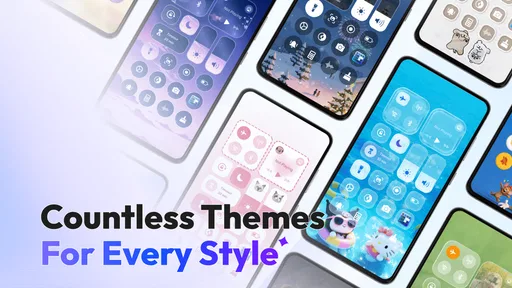
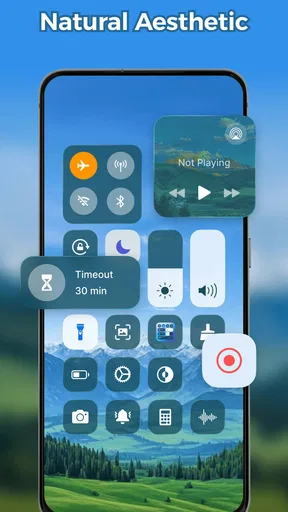
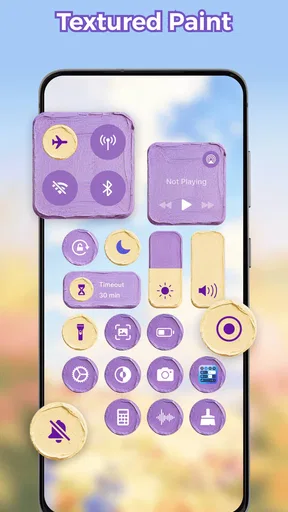
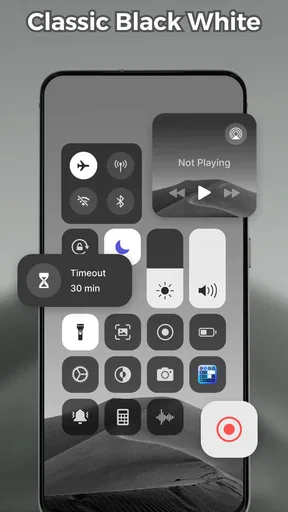
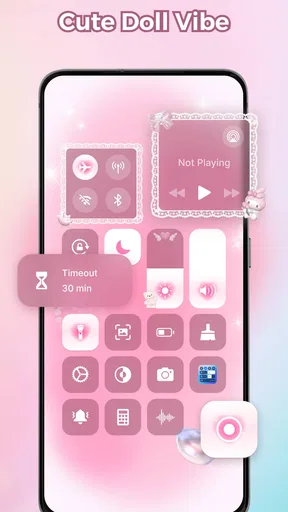
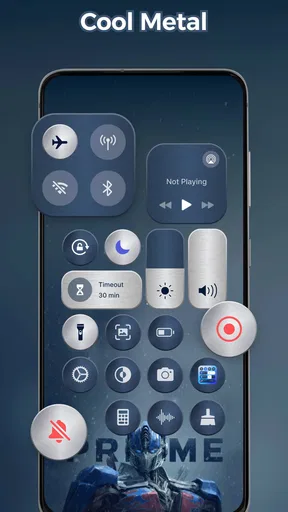
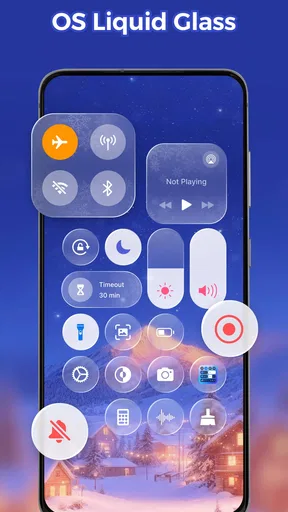
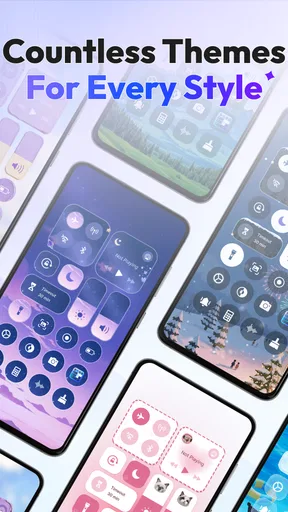
Our Review of Control Center:Theme,wallpaper
 Analysis by Appyee
I usually notice the weaknesses in a phone’s controls at the worst possible moment: music playing while I am cooking, the screen too bright in a dark room, or an app buried several swipes away when I need it immediately. Control Center:Theme,wallpaper, from AceTools Team, is built around that small daily frustration. It is a free personalization app for Android that puts a more visual control panel in reach, with shortcuts for apps, music, themes, and settings.
After spending time with it, I see the appeal clearly. It is not trying to replace every system function or become a complete launcher. Its purpose is narrower and more practical: make commonly used controls feel closer, easier to recognize, and more personal. The experience is best when I treat it as a quick-access layer rather than as a full redesign of the phone.
From a cluttered screen to a quicker daily routine
The starting condition matters. If your phone already has a clean notification shade and you rarely change brightness, audio, connectivity, or appearance, this app may feel unnecessary. Its value appears when the standard route feels repetitive. Opening Settings for a simple adjustment, hunting through the app drawer for one tool, or switching between several screens just to reach a familiar action can make a phone feel slower than it really is.
Control Center:Theme,wallpaper gives that routine a dedicated visual surface. The store summary describes quick access to apps, music, themes, and settings, and that combination explains its identity better than the short “Control Center” label. I would place it between a shortcut tool and a personalization layer: it helps with access, but it also changes how those actions look and feel.
The first useful decision is to think about what you actually reach for. I would not begin by trying to make every possible setting available. Instead, I would choose the actions that interrupt my day most often. Music controls are useful when I move between work and travel. App shortcuts help when I repeatedly open the same two or three tools. Theme and wallpaper access make more sense for someone who enjoys adjusting the phone’s appearance instead of setting it once and forgetting it.
This approach also avoids one common mistake with customization apps: making the interface attractive but slower. A panel filled with decorative choices can become another place to search. The strongest setup is the one where the visual style supports recognition. If the controls are arranged in a way that matches your habits, the panel becomes a shortcut. If everything is changed simply because it is available, the result can be more confusing than the original system shade.
Setting up the first useful flow
My recommended workflow starts with a simple test. Open the control panel when you have a real task in mind, such as changing the music, reaching a frequently used app, or adjusting the phone’s appearance. Notice whether the action feels more direct than the usual method. This gives you a practical baseline instead of judging the app only by its visual presentation.
From there, I would explore the theme and wallpaper side separately from the controls. Personalization can be enjoyable, but it should not hide the functions you installed the app to reach. A good result is a panel that looks distinct while still letting me identify the important controls at a glance. The app’s category is Personalization, yet its usefulness depends just as much on everyday navigation as on decoration.
There is also a useful distinction between occasional and frequent actions. A wallpaper change is normally an occasional task, while music control may happen several times in one day. I would prioritize the latter when evaluating the panel’s layout. This is one of the less obvious trade-offs: a beautiful theme has long-term value only if it preserves the speed of the controls underneath it.
The app is free to install, which makes experimentation easy. It is rated for Everyone, so it is positioned for a broad audience rather than a specialist customization community. Optional in-app purchases are listed from $9.99 to $29.99 per item, so I would spend time with the free experience before deciding whether the extra personalization is worthwhile. The important question is not whether more visual options exist, but whether they improve your routine enough to justify paying for them.
A realistic morning-to-evening example
Imagine starting the morning with music playing while you prepare breakfast. You want to pause the track without leaving the current task. Later, you need to open a messaging app quickly, then change the appearance of the phone before heading out. In the evening, you want a less distracting look and faster access to another setting.
In that sequence, the app acts as a handoff point between different parts of the phone. The music action begins in the control surface but affects the player. The app shortcut begins there and transfers you into the selected application. Theme or wallpaper changes begin in the personalization layer and alter the phone’s visual environment. The panel is therefore not doing everything itself; it is coordinating access to several destinations.
That distinction helps explain both its strength and its limits. When the handoff is quick, the app feels like a useful command center. When I still have to search inside the destination app or return through several screens, the benefit is smaller. I would judge it by the complete route from intention to result, not just by how polished the opening panel looks.
How the handoffs affect the experience
The most important handoff is from the custom control surface to the phone’s existing functions. A shortcut can make an action easier to start, but the final behavior still depends on the app or setting being opened. For example, a music shortcut is valuable when it gets me to the relevant controls quickly, but it does not remove the need to understand the player I am using. Similarly, an app shortcut reduces searching, but it does not change that app’s own navigation.
This makes the tool more flexible than a single-purpose widget, but less deeply integrated than a built-in system panel. The system option usually has the advantage of familiarity and direct access to core device controls. A launcher has the advantage of organizing applications across the whole home screen. A wallpaper-only app may offer a more focused visual catalog. Control Center:Theme,wallpaper sits in the middle, combining a compact access layer with appearance changes.
I find that middle position useful for people who want more than the default interface but do not want to replace their launcher. It is also less disruptive than rebuilding the entire home screen. You can keep your existing habits and add a separate route for selected actions. The trade-off is that you are introducing another interface to remember, so the benefit depends on whether its shortcuts match your actual routine.
Before settling on a layout, I would test the control panel with one hand and under different lighting. A design that looks clear in a bright room may be harder to scan at night. This is a practical reason to treat themes as functional choices rather than purely visual ones. Contrast, spacing, and recognizable icons matter more than novelty when the panel is opened quickly.
What the finished result feels like
When the setup matches my habits, the outcome is a phone that feels more responsive without necessarily changing its hardware. I can reach selected actions from a consistent place, and the appearance gives that route a stronger identity than the standard system shade. The improvement is modest in any single interaction, but repeated small savings are exactly where this kind of app earns its place.
The result is especially convincing for users who frequently switch between media, apps, and appearance settings. It can make a personal device feel more deliberately arranged instead of assembled from default screens. I also appreciate that the app’s focus is easy to understand: it is not asking me to learn a large productivity system. It offers a compact layer for actions I already know I want.
Its popularity suggests that this idea resonates with many Android users. The app has passed ten million installs, and its average rating is 4.8 from around 229 thousand ratings. Those figures do not guarantee that every phone or preference will feel the same, but they do show that the concept has broad appeal. The developer, AceTools Team, has kept the product’s identity centered on quick access and customization rather than turning it into an unrelated all-purpose utility.
The current version is 1.2.9, and the app supports Android 6.0 and later. That broad minimum requirement is helpful if you use an older Android phone and still want a more modern-looking control layer. At the same time, older devices can make any visual overlay feel less immediate than it does on newer hardware, so I would pay attention to how quickly the panel opens and closes on your particular phone rather than assuming the experience will be identical everywhere.
Where the workflow starts to break
The first point of friction is duplication. Android already includes quick settings, notification controls, app shortcuts, and personalization options. Adding another panel can improve access, but it can also create two competing places for the same task. If I forget which panel contains a setting, the extra layer has failed its main purpose. This is why I would keep the setup focused and avoid copying every system control into it.
The second issue is the boundary between appearance and utility. Themes and wallpapers can make the panel more appealing, but customization may encourage constant tweaking. If you enjoy changing the look of your phone, that is part of the fun. If you want a quiet tool that disappears into the background, the visual emphasis may feel like unnecessary activity.
There is also a cost question. The app is free, but individual in-app purchases range from $9.99 to $29.99. That is a meaningful difference between trying the basic experience and committing to paid extras. I would not buy anything until I had used the panel during normal routines and confirmed that it solves a problem I actually have. Someone interested only in a simple shortcut may find the free route sufficient, while a dedicated customization fan may value the additional options more.
Another limitation is that a shortcut layer cannot guarantee a seamless result across every destination. Once an action hands me to a music app, a system setting, or another application, that destination controls the next step. The panel can shorten the beginning of the journey, but it cannot make every third-party interface behave consistently. Users expecting one unified control experience from start to finish should keep that boundary in mind.
I would also skip this app if my priority is deep launcher replacement, advanced automation, or a highly specialized system-management tool. A launcher is better when the main problem is organizing a large app collection. Built-in Android controls are better when I want the fewest moving parts and maximum familiarity. A dedicated wallpaper application may be better when visual discovery is the only goal. This app is strongest when those needs overlap: quick access plus a more personal presentation.
Who will get the most from it
I think it suits Android users who repeatedly perform the same small set of actions and want them gathered in one recognizable place. It is also a good match for people who care about the phone’s visual mood but do not want to replace the whole launcher. The Everyone rating and older Android support make it approachable, while the free entry point lowers the risk of testing it.
It is less suitable for someone who already feels overwhelmed by interface layers. If your notification shade is perfectly organized and you rarely change themes, wallpapers, music, or settings, another control surface may add more maintenance than convenience. The same is true if you dislike paid customization models; the available purchase range means you should be comfortable treating optional visual content as a separate decision rather than assuming everything belongs to the basic experience.
For the best outcome, I would use it with a deliberately small set of shortcuts, choose a theme that keeps controls easy to distinguish, and test the complete handoff into each destination. That workflow reveals whether the app is genuinely saving time or merely making the first screen look different. It also prevents the common mistake of judging personalization by screenshots instead of by repeated use.
My recommendation after following the full workflow
Control Center:Theme,wallpaper is a sensible choice when the default Android route feels too plain or too slow for your habits. I like the way it connects quick access with personalization without requiring a complete home-screen rebuild. The strongest benefit is not one dramatic feature; it is the ability to create a consistent starting point for music, selected apps, themes, wallpapers, and settings.
My recommendation is more cautious for users who want a pure utility. The visual layer and optional purchases may be more than you need, and the extra panel can become redundant if you already use Android’s controls efficiently. I would install it when I can name several actions I want to reach more easily, then judge the result after a normal day rather than after a few minutes of browsing themes.
Overall, I see it as a practical personalization app with a clear everyday workflow: start from a custom control surface, hand off to the relevant phone function, and return with less searching than before. The best reason to use it is not decoration alone, but a faster route to the actions you repeat. For that audience, the free version is worth trying, while paid options should be considered only after the panel has earned a regular place in your routine.
Verdict
Strengths of Control Center:Theme,wallpaper
- Quick access to Wi‑Fi, Bluetooth, brightness, and other controls.
- Customizable control panel colors, layouts, and button styles.
- Includes a variety of wallpapers and visual themes.
- Can improve access to controls on phones with smaller screens.
- Simple interface that is easy to understand and use.
Limitations of Control Center:Theme,wallpaper
- May require extensive permissions to work as an overlay.
- Some features can be limited or locked behind advertisements.
- Overlay controls may interfere with buttons in other apps.
- Can consume extra battery while running continuously in the background.
- Compatibility may vary across Android versions and device brands.
Other Releases by AceTools Team
View All
Open Chat - AI bot app
Productivity4.6

Watch Sync App - BT Notifier
Communication4.1
Similar Picks in This Category
View All
Microsoft SwiftKey AI Keyboard
SwiftKey4.3

Wallpapers
Google LLC4.1

Zedge™ Wallpapers & Ringtones
Zedge4.7

Yandex Browser with Alice AI
Direct Cursus Computer Systems Trading LLC4.3

Ringtone Maker:create ringtone
Big Bang Inc.4.7

Fonts Keyboard
Fonts Keyboard3.9
Frequently Asked Questions
What is Control Center: Theme, Wallpaper, and what does it do?
Control Center: Theme, Wallpaper is a customization app designed to give your Android device a control panel inspired by modern mobile interfaces. After installation, it may provide quick-access toggles, customizable themes, wallpapers, icons, and visual effects. Depending on your device and Android version, some features can require accessibility, notification, overlay, or other permissions to reproduce the full appearance and behavior.
Is Control Center: Theme, Wallpaper safe to install and use?
The app can generally be used safely when downloaded from a trusted source, such as the official Google Play Store, but users should still review its requested permissions and privacy information before enabling every feature. A control-center replacement may request permission to appear over other apps or access accessibility services. Only grant permissions that are necessary for the functions you actually want to use.
Does Control Center: Theme, Wallpaper change the phone’s original system settings?
The application mainly adds a customizable visual layer and shortcut panel over the existing Android interface; it does not normally replace the phone’s operating system or permanently modify the manufacturer’s system settings. However, it may imitate certain controls and provide shortcuts rather than directly offering every native function. Some toggles can open system pages instead of changing settings automatically.
Will Control Center: Theme, Wallpaper affect battery life or phone performance?
The impact depends on how many visual features you activate and how the app operates in the background. Live wallpapers, animated effects, persistent overlays, and accessibility services may consume additional battery or memory, especially on older devices. During testing, users should monitor battery usage and disable unnecessary animations or background permissions if the phone becomes slower or battery life noticeably decreases.
Is Control Center: Theme, Wallpaper free, and are there advertisements or in-app purchases?
The app may be available as a free download, but free versions of customization tools commonly include advertising, premium themes, additional wallpaper collections, or optional in-app purchases. The exact pricing and available features can change with updates, so check the store listing before downloading. Also review subscription terms carefully and confirm whether premium content is a one-time purchase or recurring payment.
